The RapidStart Field Service App provides automated SMS message Alerts if the Twilio solution has been configured. If the Dispatcher has selected “SMS” or “Both” as the Alert Method on a Work order, a Text message will go out to your Service Contact (Customer) when a Dispatcher creates a Service Appointment and also when your Technicians update their status regarding Service Appointments on the Mobile App.
SMS Templates
Create Message Templates. In the app sidebar, you will see a new Item: SMS Message Templates; click that to open the screen below.

Click “+ New” in the top navigation.

Select an Event from the Appointment Status dropdown. For example “On the Way”.
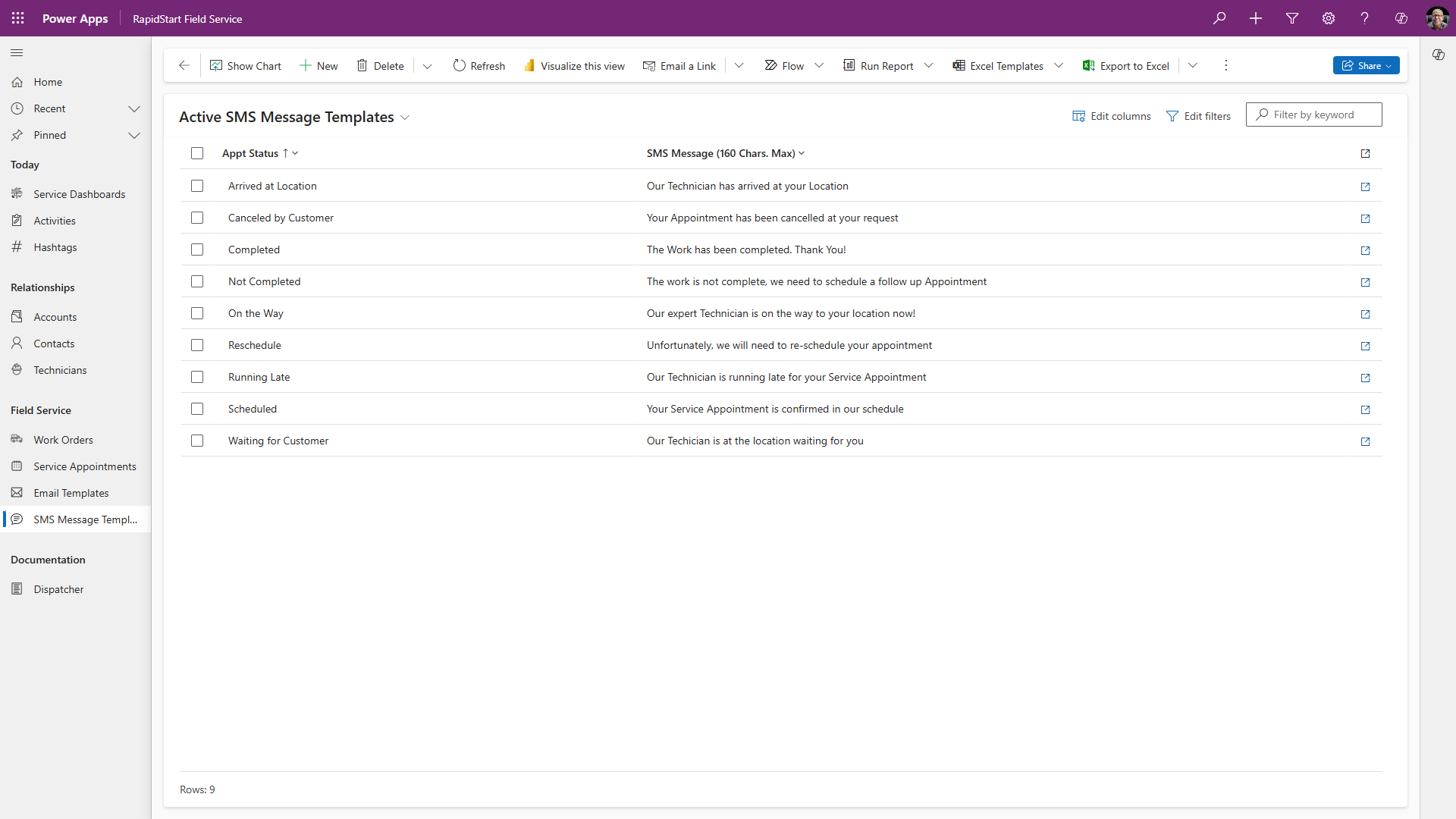
Type the message (160 characters max.) that you want to be sent to the customer for the event, then “Save and Close”. Repeat this for each event.
When your screen looks similar to the above, you are all done. Your users may need to log out and back in to see the updates.
Now when you select either “SMS” or “Both” from the Alert Method field on the Work order, your customer will receive text message alerts.
Note: Twilio requires a full phone number, including the country code (+1 8888888888). Make sure all of your Customers’ mobile numbers on their contact records comply.